Your product photo looks identical in the browser whether it's saved as a 4MB PNG or a 380KB WebP — except one of those files is the reason your page takes six seconds to load. WebP is an image format built by Google that compresses images far smaller than JPG or PNG while keeping the same visual quality, and it now works in every major browser.
Here's what WebP actually is, how it stacks up against the formats you're already using, where it falls short, and how to convert your existing images without breaking anything.
TL;DR: WebP is a single image format that handles what JPG and PNG do separately — lossy compression, lossless compression, transparency, and animation — and it does it in 25-34% less space. Every major browser supports it today. Switch unless you're emailing images directly or working with software that explicitly requires JPG/PNG.
Key Takeaways:
- ✓ WebP files are typically 25-34% smaller than JPG and up to 26% smaller than PNG at the same visual quality
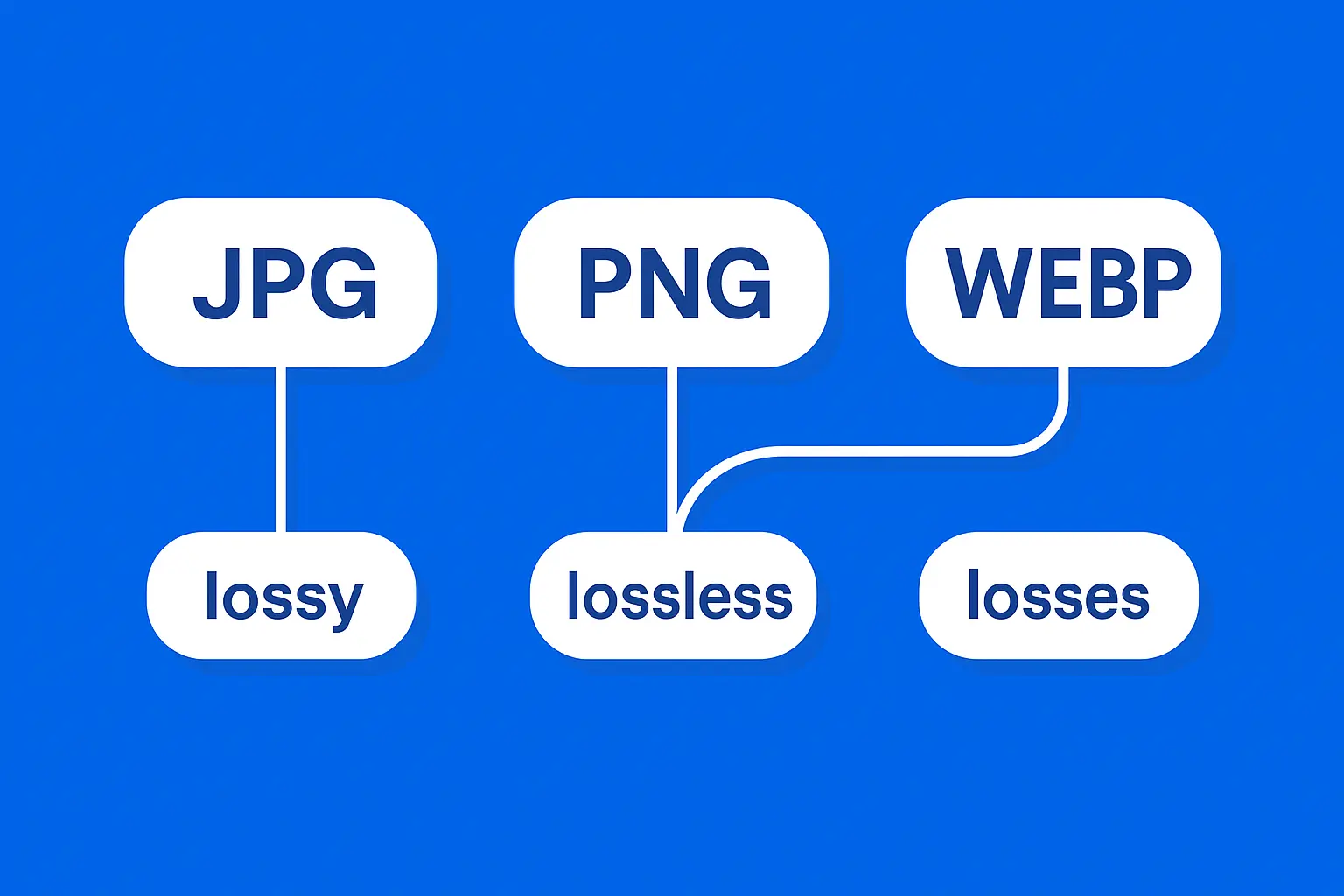
- ✓ Unlike JPG (lossy only) or PNG (lossless only), WebP supports both modes in one format
- ✓ WebP supports transparency and animation, covering what used to require PNG and GIF separately
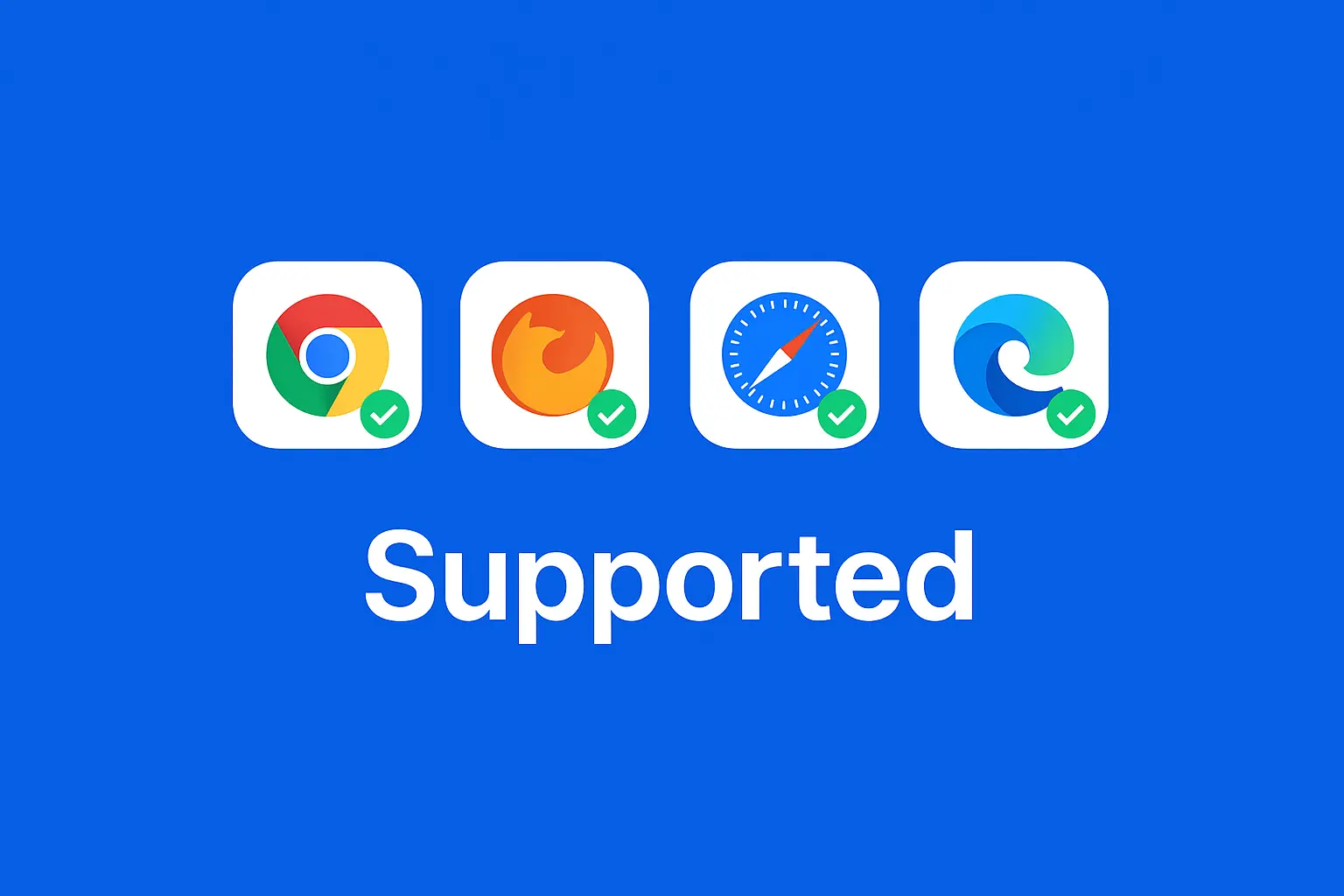
- ✓ All major browsers — Chrome, Firefox, Safari, Edge — support WebP as of 2026
- ✓ A handful of edge cases (email clients, some legacy CMS plugins) still expect JPG or PNG
What Is WebP, Exactly?
WebP is an image format Google released in 2010 to solve a specific problem: the web was stuck choosing between JPG's small file sizes and PNG's lossless quality and transparency. WebP does both. It's a single container format that supports lossy compression (like JPG, where some data is discarded to shrink the file), lossless compression (like PNG, where nothing is discarded), and animation (like GIF) — all in one file type.
That flexibility is the whole point. Instead of picking JPG for photos and PNG for graphics with transparent backgrounds, you can use WebP for both and let the encoder decide how aggressively to compress based on what's actually in the image. A photo gets handled with lossy compression tuned for natural color gradients; a logo or screenshot gets handled with lossless compression tuned for sharp edges and flat colors. You don't have to choose the format yourself — the encoder picks the right approach for the content.
Under the hood, WebP's lossy mode uses a prediction-based compression scheme borrowed from video codecs (specifically, techniques from VP8), which is part of why it outperforms JPG's older block-based compression at the same file size. Its lossless mode uses a different set of transforms that consistently beat PNG's DEFLATE-based compression on real-world images.
How WebP Actually Compares to JPG and PNG
The format war comes down to a handful of things people actually care about: how small the file gets, whether it supports transparency, how it holds up if you need to edit or re-save it, and whether your tools and audience can even open it.
CriteriaJPGPNGWebP
Compression type | Lossy only | Lossless only | Both lossy and lossless
Typical file size vs WebP | 25-34% larger | Up to 26% larger | Baseline (smallest)
Transparency support | No | Yes | Yes
Animation support | No | No (needs APNG) | Yes
Quality loss on re-save | Yes, compounds each save | None (lossless) | None in lossless mode, minimal in lossy mode
Browser support (2026) | Universal | Universal | Universal (all major browsers)
File size at the same visual quality
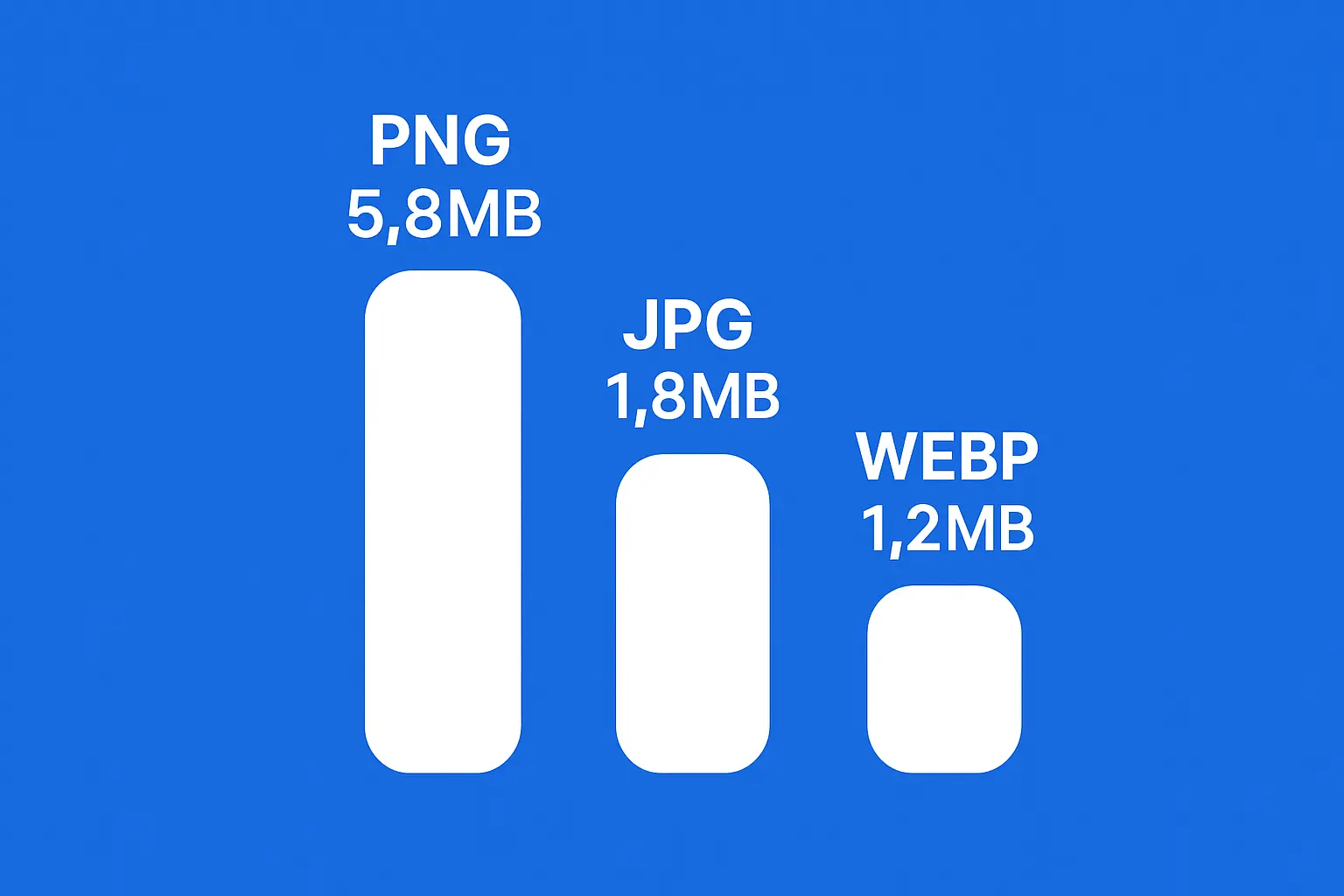
At equivalent visual quality, WebP files run 25-34% smaller than JPG and 26% smaller than PNG, according to Google's own benchmarks. In practice, that means a 1.8MB JPG product photo can become a 1.2MB WebP with no visible difference, and a 5.8MB PNG screenshot can shrink to under 1MB. Stack that across a product page with 15-20 images and the difference between PNG and WebP can be the difference between a 40MB page load and an 8MB one.
Transparency and animation support
PNG has always been the format for logos, icons, and anything that needs a transparent background. WebP matches that with its lossless mode, plus it adds animation support — something PNG never had on its own (you needed GIF or the less common APNG format for that). If you're currently maintaining separate PNG and GIF assets for the same UI element, WebP can often replace both, which also means one less format to keep track of in your asset pipeline.
Editing and re-compression behavior
JPG degrades a little more every time you open, edit, and re-save it because the lossy compression discards data each pass — open a JPG in an editor, crop it, save it, and repeat that five times, and you'll start seeing visible artifacts. WebP's lossless mode avoids that entirely for assets you'll edit repeatedly, and even WebP's lossy mode tends to hold up better across multiple saves than JPG at a comparable quality setting, since its encoder is less aggressive about throwing away fine detail.
Who can actually open a WebP file
This used to be the dealbreaker for WebP adoption — early versions of Safari and Internet Explorer didn't support it at all. That changed years ago. As of 2026, Chrome, Firefox, Safari, and Edge all support WebP natively, both for displaying it on the web and for opening it in most image editors and operating systems. The compatibility argument against WebP is mostly outdated at this point.
What Actually Changes When You Convert
The percentages are nice, but here's what they translate to depending on what you're actually publishing:
Shopify product photos: Smaller image files mean more product images load above the fold before a shopper scrolls, and your product pages stop being the slowest part of checkout. A typical Shopify store with 20+ images per collection page sees real load time improvements after switching — and faster product pages correlate directly with lower bounce rates on mobile, where most shopping traffic actually happens.
Instagram and social exports: If you're exporting graphics for a website (not Instagram itself, which re-compresses everything anyway), WebP keeps your blog or landing page images sharp without the page weight. This matters most for creators who repost the same visual assets across a portfolio site or link-in-bio page, where every extra megabyte adds load time on mobile data connections.
WordPress blog images: Every image on a WordPress post counts against your hosting bandwidth and your Core Web Vitals score, specifically Largest Contentful Paint (LCP) — the metric that measures how long it takes your biggest visible element to load. Swapping your media library to WebP is one of the few SEO changes that has an immediate, measurable effect on page speed. You can convert your images here in bulk before re-uploading them to your CMS.
Developer and design workflows: If you're hand-coding a site or shipping assets through a build pipeline, switching your <picture> source set or build step to output WebP (with a JPG/PNG fallback) is usually a one-line config change that pays off on every page that loads an image.
Where WebP Falls Short (Be Honest)
WebP isn't a universal upgrade in every situation:
- Email clients: Outlook and some older email clients still don't render WebP correctly, so transactional and marketing emails should stick with JPG or PNG to avoid broken images in someone's inbox.
- Legacy CMS plugins and print workflows: Some older plugins, PDF generators, and print-design tools expect JPG or PNG specifically and will fail silently on WebP input — always test a single file before batch-converting a whole media library tied to a third-party plugin.
- Tiny icons: For very small images (under a few KB), WebP's container overhead can occasionally make the file slightly larger than an already-tiny PNG. It's rare, but worth a quick check on small assets like favicons.
- Some design software: A handful of older versions of design and photo-editing tools don't open WebP natively and need a plugin or a quick round-trip conversion first.
If you're not ready to switch formats everywhere, compressing your existing JPG and PNG files still cuts page weight significantly — you can try our free image compressor without touching the format at all.
3 Ways to Convert Your Images to WebP
You don't need to pick just one of these — most people end up using a mix depending on whether they're converting a handful of images or an entire media library.
1. Online converters
The fastest option for most people. Drop in a JPG, PNG, or HEIC file and get a WebP file back in seconds, no software to install. This is the right call for one-off conversions, product photo batches before a Shopify upload, or any time you just need the file converted without setting up a workflow.
2. Command-line tools
If you're a developer working in a build pipeline, Google's `cwebp` command-line tool converts images directly from a terminal or script, which makes it easy to automate as part of a deployment process. A basic conversion looks like `cwebp -q 80 photo.png -o photo.webp`, where the `-q` flag controls quality versus file size.
3. CMS plugins
WordPress, Shopify, and most major platforms have plugins that auto-convert images to WebP on upload or serve WebP versions automatically to browsers that support it, falling back to the original format for the rest. This is the lowest-effort option if you're not comfortable touching your media library directly, but it does mean trusting a third-party plugin to handle the conversion correctly.
How Allimgtools Handles WebP Conversion
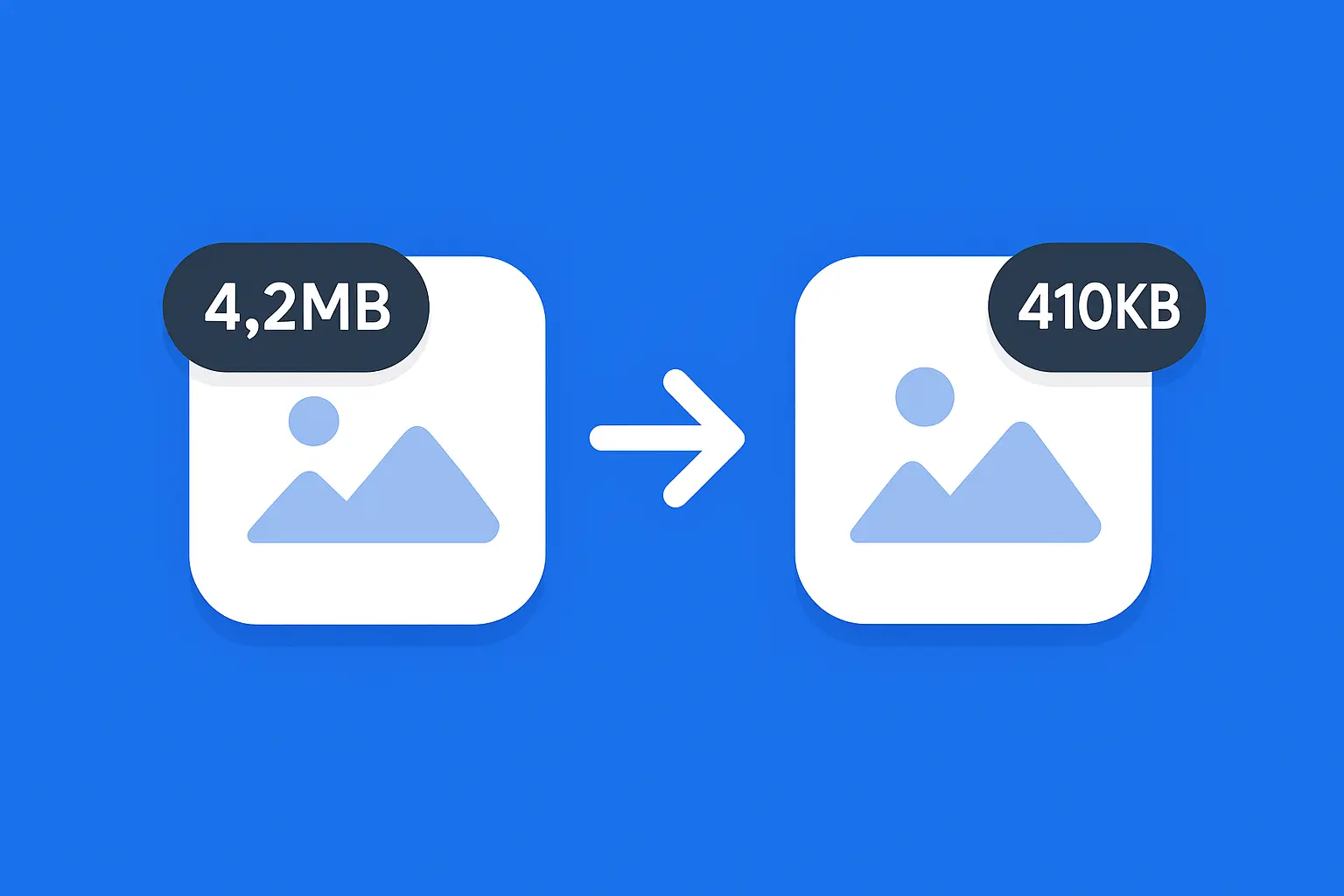
Our conversion tool takes any JPG, PNG, or HEIC file and outputs WebP (or back again) directly in your browser — nothing gets uploaded to a server first, so there's no wait and no privacy concern about where your images end up. Drop in a 4.2MB PNG product photo and it typically comes back around 410KB as WebP, a 90% reduction with no visible quality loss side by side.
You can convert files one at a time or batch-process a whole folder, and the tool keeps transparency intact automatically so you don't end up with the white-background problem mentioned above. Quality is adjustable if you want to push file size down further for thumbnails or keep more detail for hero images, and the whole process takes a few seconds per batch since there's no upload step slowing things down.
How to Check That the Conversion Actually Worked
After converting, don't just assume it worked — a quick check takes thirty seconds and catches the mistakes covered below before they go live. Compare the file size before and after (you're looking for that 25-34% reduction), open the WebP file directly to confirm transparency and color held up, and if you're optimizing a live page, run it through PageSpeed Insights or your browser's network tab to confirm the page actually loads faster than it did before.
Common Mistakes When Switching to WebP
- Converting your entire media library without a fallback. Keep a JPG/PNG version available, or use a <picture> tag with multiple sources, so the rare visitor on an unsupported browser or tool still sees the image.
- Not checking that transparency survived the conversion. Some converters flatten transparent PNGs onto a white background by default, which is invisible until you notice your logo suddenly has a white box around it on a dark page.
- Batch-converting at a single quality setting. Photos and flat-color graphics compress differently — a setting that looks great on a photo might visibly degrade a screenshot with text, so it's worth spot-checking a few different image types before converting everything.
- Forgetting to update filenames and alt text. Some CMS themes and broken-image fallbacks reference the file extension directly, and a mismatch after conversion can quietly break image links you don't notice until a visitor reports it.
Quick Recap:
- ✓ WebP combines lossy compression, lossless compression, transparency, and animation in one format
- ✓ It runs 25-34% smaller than JPG and up to 26% smaller than PNG at equal quality
- ✓ All major browsers support it as of 2026 — the holdouts are email clients and some legacy tools
- ✓ Converting your product photos, blog images, or web exports to WebP is one of the fastest page-speed wins available
- ✓ Always keep a fallback format for email and any tool that doesn't explicitly support WebP
FAQ
Is WebP better than JPG?
For most web use cases, yes — WebP produces smaller files at the same visual quality and supports transparency, which JPG never has. JPG still works fine for email attachments or software that doesn't support WebP.
Does WebP support transparency?
Yes. WebP's lossless mode handles transparency the same way PNG does, so you can replace transparent PNGs with WebP without losing that capability.
Do all browsers support WebP?
Yes, as of 2026 Chrome, Firefox, Safari, and Edge all support WebP natively. The format reached near-universal browser support several years ago, so compatibility is no longer the blocker it used to be.
Will converting to WebP hurt my SEO?
No — it generally helps. Smaller image files improve page load speed and Core Web Vitals scores, both of which factor into search ranking. Just make sure your alt text and filenames stay accurate after conversion.
Can I convert WebP back to JPG or PNG?
Yes, the conversion works both directions. If you need a JPG or PNG copy for a tool that doesn't accept WebP, you can convert back without much quality loss.
Is WebP the same as AVIF?
No. AVIF is a newer format that compresses even smaller than WebP in some cases, but it has less consistent browser and software support right now. WebP is the safer, more broadly compatible choice today.
Wrapping Up
The size difference between WebP and JPG/PNG isn't a marginal optimization — it's often a 25-90% reduction with no visible quality tradeoff. For the handful of cases where you genuinely need JPG or PNG, keep using them. For everything else, there's no real reason not to switch.